How to Use Header and Footer Blocks in the Email Builder
Add and customise header and footer blocks in the Email Builder to keep your campaigns brand-aligned and compliant with email marketing best practices.
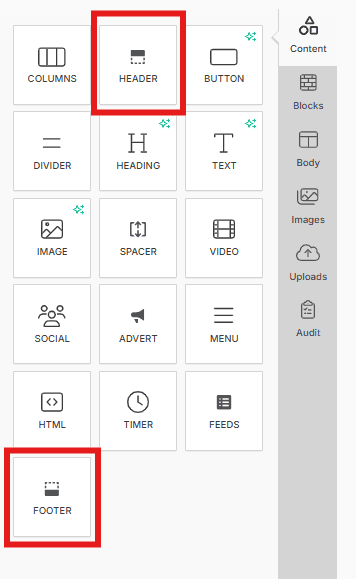
The Header and Footer blocks in the Email Builder allow you to create a consistent and professional look across all your email campaigns. These blocks typically include essential elements like your logo, navigation links, contact details, and unsubscribe options. By customising your headers and footers, you ensure that your emails are both brand-aligned and compliant with email marketing best practices. You can add both your header and footer by dragging them into your design from the content tab:
Header:
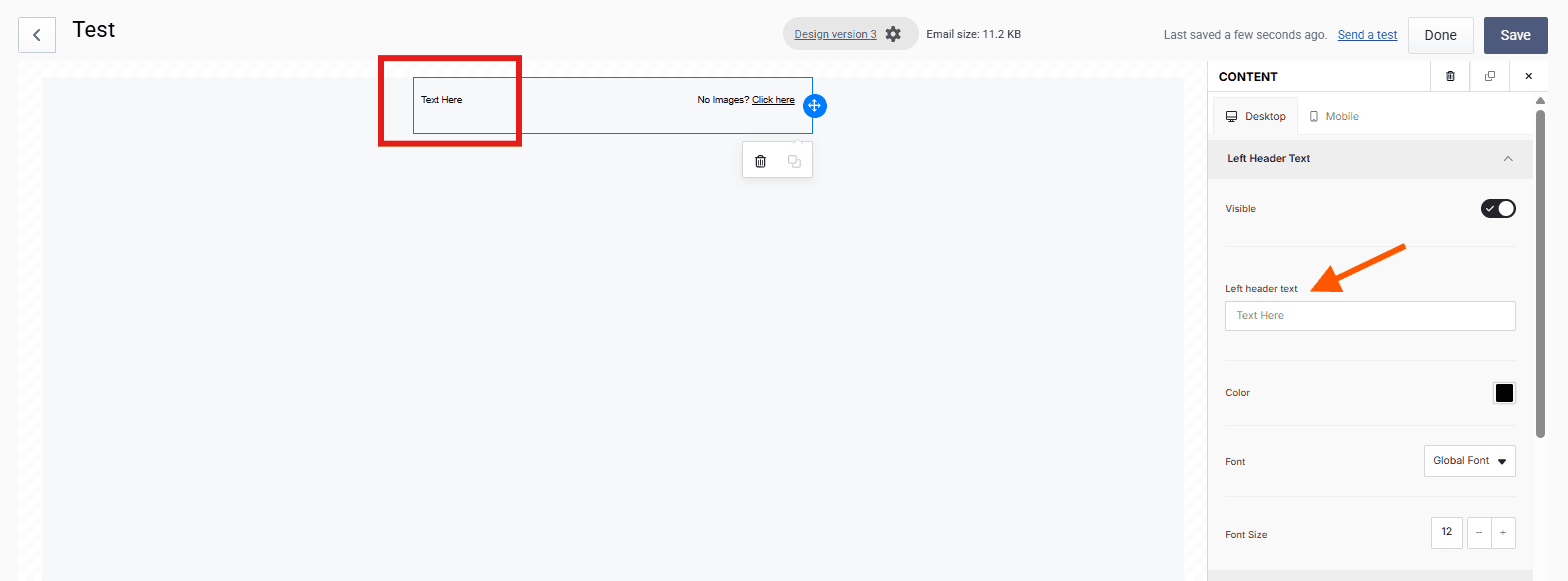
Left Header Text You can include text on the left side of the header. To add or edit this text, go to the Content tab (indicated by the orange arrow). The updated text will appear in the design preview (highlighted by the red block). This section is commonly used for the mailer’s preview text or the company name.
Preheader text
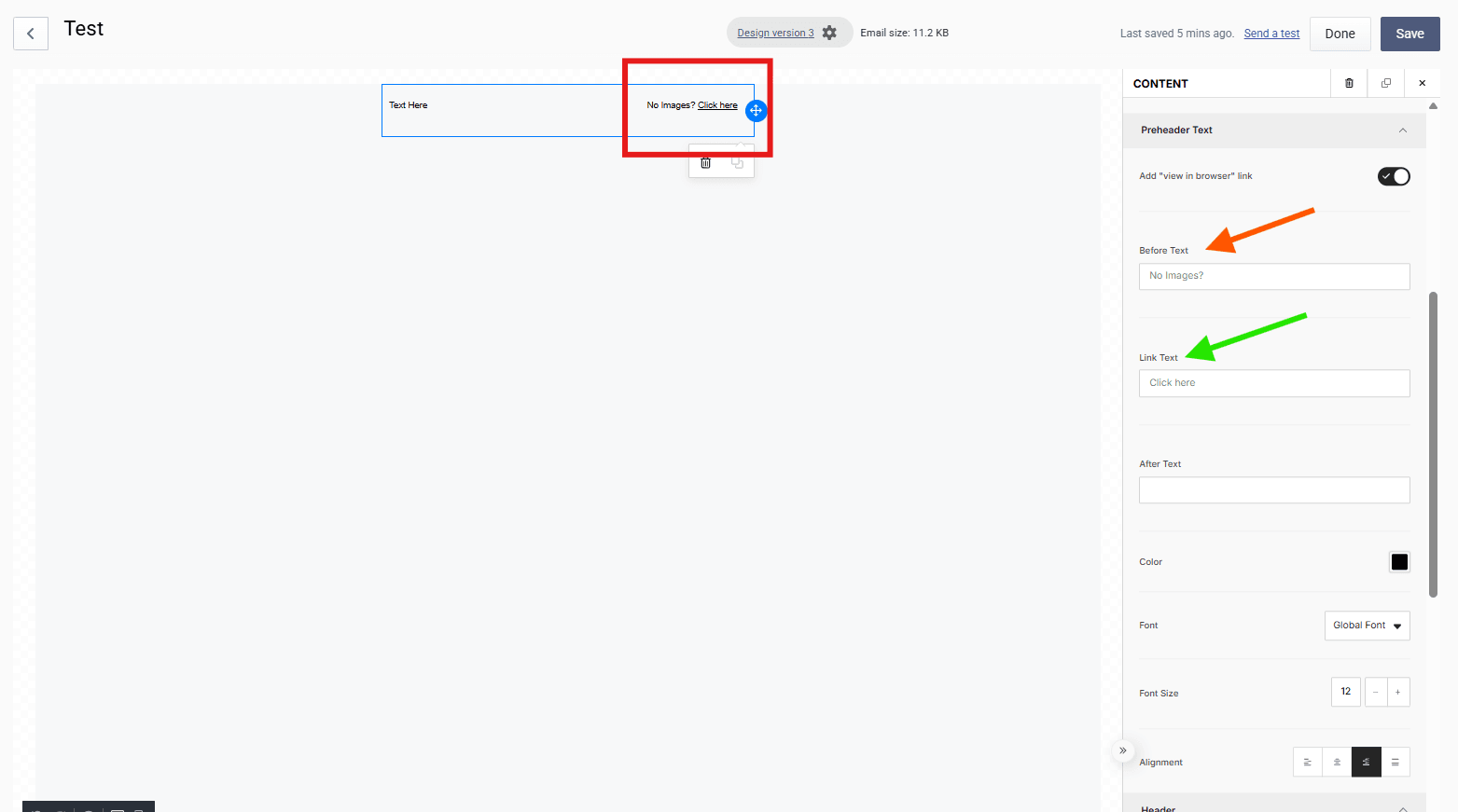
The preheader can include a link that allows recipients to view the mailer in their browser, ensuring full visibility of the content. You can edit both the display text (orange arrow) and the link text (green arrow) to match your needs.
Header block
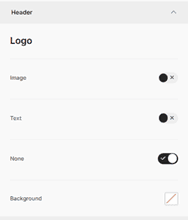
The header block can also include an image, typically a company logo or banner, as well as additional text. This allows for greater customisation and branding within your email.
Footers:
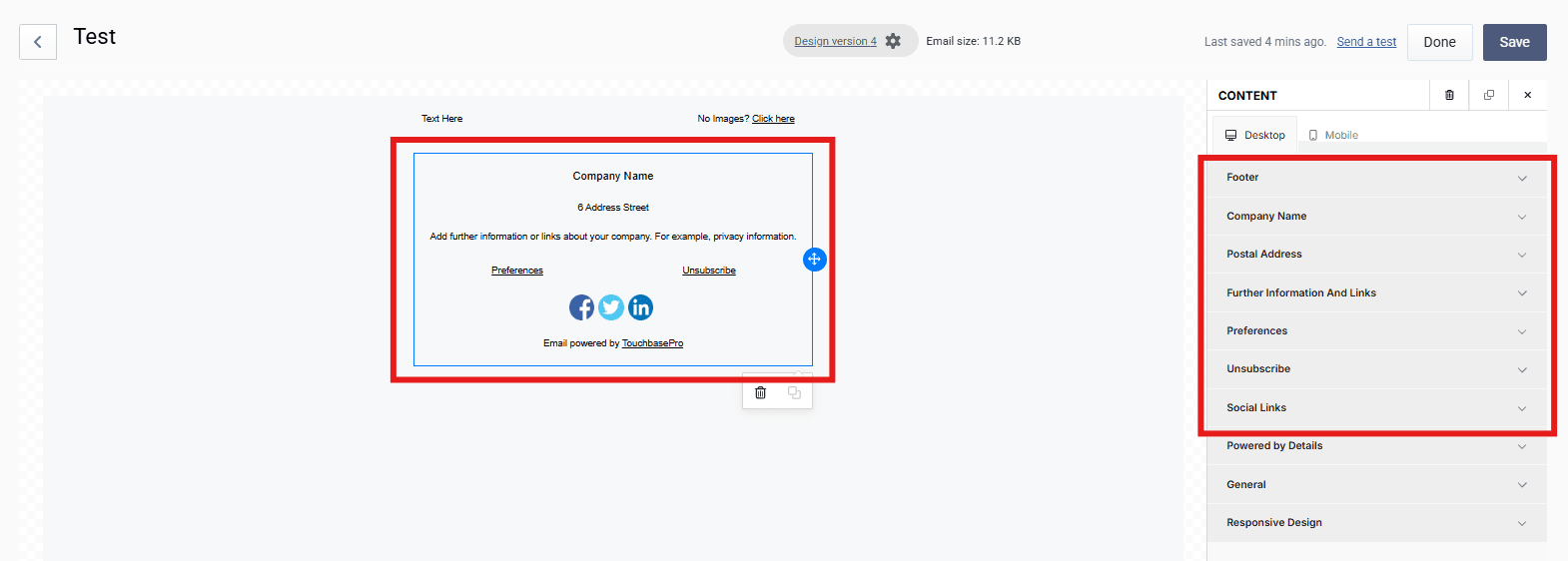
In the footer, you can include important details such as the Company Name, Postal Address, Additional Information and Links (e.g. About Us, Contact Info), a Preferences link, a mandatory Unsubscribe Link, and Social Media Icons linking to your profiles.
All elements in the footer can be easily customised. Adjust the size, font, and colour to align with your brand’s look and feel.
Frequently asked questions
- How do I add a header or footer block to my email?
- You can add both your header and footer by dragging them into your design from the Content tab.
- What can I include in the header block?
- The header block can include left-side text (commonly used for preview text or the company name), preheader text with a browser view link, and an image such as a company logo or banner, as well as additional text.
- What elements can I add to the footer?
- In the footer, you can include the Company Name, Postal Address, Additional Information and Links (for example, About Us and Contact Info), a Preferences link, a mandatory Unsubscribe link, and Social Media icons linking to your profiles.
- Can I customise the appearance of the footer?
- Yes. All elements in the footer can be customised. You can adjust the size, font, and colour to align with your brand's look and feel.