Troubleshoot Email Campaign Delivery Issues in TouchBasePro
Use the TouchBasePro Subscriber Activity Report to retrieve a message ID, then trace undelivered campaign emails across Office 365, Google Workspace, local Exchange, and Posix mail servers.
Email campaigns are a powerful tool for marketing and communication. However, issues can arise when messages are not delivered as expected. This document aims to provide a detailed guide on how to troubleshoot delivery problems effectively.
Identifying the Problem
When a message has not been delivered but shows as sent in the TouchBasePro interface, there are a few steps you can take to identify and resolve the issue.
Step 1: Access the Subscriber Activity Report
Simply go to the subscriber activity report within the TouchBasePro interface. Hover over the info icon next to the undelivered message to obtain the message ID. This ID is crucial as it is the identifier that the remote server gave back to us.
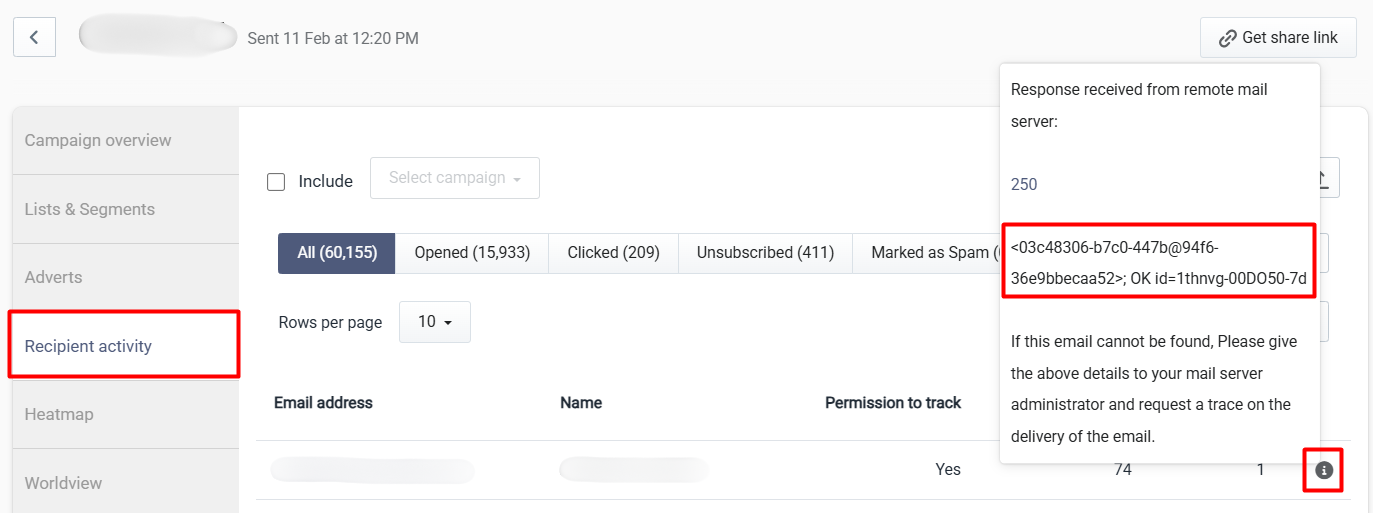
Step 2: Message ID Trace
With this ID, you can go to your server and run a trace to find out what happened to the message. This process will vary depending on the type of server you are using. Below are detailed steps for different server types.
Troubleshooting on Various Servers
Office 365 Servers
For tracing messages on Office 365 servers, please follow these steps:
- Log into the Office 365 Admin Center.
- Navigate to the Exchange Admin Center.
- Click on 'Mail Flow' and then 'Message Trace'.
- Enter the message ID obtained from the TouchBasePro interface.
- Run the trace and review the results to identify any issues.
Gsuite Servers
For tracing messages on Gsuite servers, please follow these steps:
- Log into the Google Workspace Admin console.
- Go to 'Reports' and then 'Email Log Search'.
- Input the message ID into the search field.
- Run the search and review the results.
- Analyze the data to find any delivery issues.
Local Exchange Servers
For tracing messages on local exchange servers, please follow these steps:
- Open the Exchange Management Shell.
- Use the command: Get-MessageTrackingLog -MessageId "YourMessageId".
- Review the output for any errors or delivery issues.
- Correspond the findings with server logs to pinpoint the problem.
Posix Servers
For tracing messages on Posix servers, please follow these steps:
- Open a terminal window.
- Access the mail logs using the command: grep "YourMessageId" /var/log/mail.log.
- Analyze the log entries for any indications of delivery failure.
- Follow up on any errors or warnings found in the logs.
Common Issues and Solutions
Incorrect Email Addresses
One of the most common reasons for email delivery failures is incorrect email addresses. Double-check the recipient list to ensure all addresses are valid.
Spam Filters
Emails may sometimes be blocked by spam filters. Ensure that your emails comply with anti-spam regulations and best practices to avoid being flagged.
Server Connectivity Issues
Problems with server connectivity can also lead to delivery failures. Check your server settings and network connectivity to ensure stable communication.
Configuration Errors
Incorrect server configurations can prevent emails from being delivered. Review your server settings and make necessary adjustments to fix configuration issues.
Preventive Measures
Regular Monitoring
Regularly monitor your email campaigns and server logs to catch any issues early. This proactive approach can help in preventing larger problems.
Maintaining Clean Lists
Keep your email lists clean and updated to reduce the chances of delivery failures due to invalid addresses.
Ensuring Compliance
Ensure that your emails comply with relevant regulations and best practices, including proper authentication (SPF, DKIM, DMARC) to improve deliverability.
Conclusion
Troubleshooting email delivery problems can be complex, but with the right tools and procedures, you can identify and resolve issues effectively. By following the steps outlined in this guide and regularly monitoring your campaigns, you can ensure successful email delivery and improve your campaign performance.
To assist further in troubleshooting email delivery issues, it is crucial to understand SMTP response codes which provide valuable insights into the status of email transmissions. Below is a table outlining various SMTP response codes and their meanings:
Code
Meaning
200
Nonstandard success response.
211
System status, or system help reply.
214
Help message.
220
Service ready.
221
Service closing transmission channel.
250
Requested mail action okay, completed.
251
User not local; will forward to
252
Cannot VRFY user, but will accept message and attempt delivery.
354
Start mail input; end with
421
Service not available, closing transmission channel.
450
Requested mail action not taken: mailbox unavailable.
451
Requested action aborted: local error in processing.
452
Requested action not taken: insufficient system storage.
500
Syntax error, command unrecognized.
501
Syntax error in parameters or arguments.
502
Command not implemented.
503
Bad sequence of commands.
504
Command parameter not implemented.
550
Requested action not taken: mailbox unavailable.
551
User not local; please try
552
Requested mail action aborted: exceeded storage allocation.
553
Requested action not taken: mailbox name not allowed.
554
Transaction failed.
Frequently asked questions
- How do I find the message ID for an undelivered campaign email in TouchBasePro?
- Go to the Subscriber Activity Report within the TouchBasePro interface. Hover over the info icon next to the undelivered message to obtain the message ID. This ID is the identifier that the remote server gave back.
- How do I trace an undelivered message on an Office 365 server?
- Log into the Office 365 Admin Center, navigate to the Exchange Admin Center, click on 'Mail Flow' and then 'Message Trace', enter the message ID obtained from the TouchBasePro interface, then run the trace and review the results to identify any issues.
- How do I trace an undelivered message on a Posix server?
- Open a terminal window and access the mail logs using the command: grep "YourMessageId" /var/log/mail.log. Analyse the log entries for any indications of delivery failure and follow up on any errors or warnings found in the logs.
- What are common reasons email campaigns fail to deliver?
- Common causes include incorrect email addresses, messages blocked by spam filters, server connectivity issues, and incorrect server configurations. Maintaining clean lists and ensuring compliance with SPF, DKIM, and DMARC authentication also helps improve deliverability.